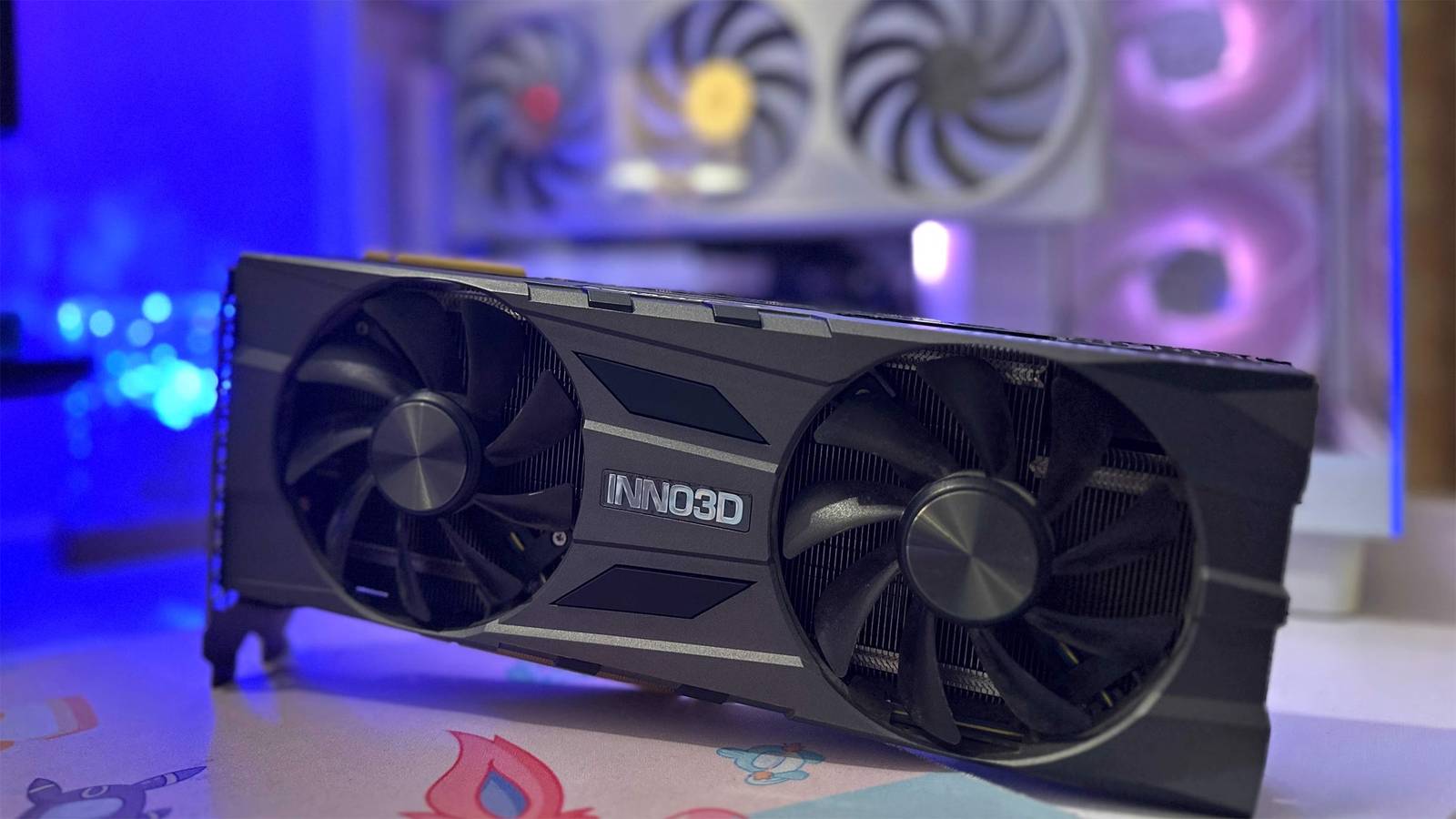
Revitalize Your Old PC: The Smart Upgrade for Plex Hardware Transcoding
Is your venerable old PC struggling to keep up with your Plex media server's demands? You're not alone. Many users with older hardware find that their trusty desktop or server, while perfectly capable for general tasks, chokes when asked to transcode video streams on the fly. The good news is, you don't need to shell out for an entirely new system. A well-chosen, inexpensive
hardware transcoding graphic card can breathe new life into your setup, turning a stuttering mess into a smooth streaming experience for all your users.
Plex, the popular media server software, often needs to transcode media – converting video files from one format or resolution to another – to make them compatible with various playback devices or network conditions. This process can be incredibly CPU-intensive. While newer CPUs often boast powerful integrated graphics with dedicated hardware for this task (like Intel's Quick Sync Video), older processors, even those with early Quick Sync iterations, can quickly hit their limits, especially with multiple simultaneous streams or demanding formats. This article will guide you through selecting and implementing a budget-friendly GPU to offload this heavy lifting, allowing your old PC to shine once more.
Understanding Hardware Transcoding: Why a Dedicated GPU is a Game Changer
At its core, transcoding involves two main steps: decoding the original video stream and then encoding it into the target format. When done entirely by the CPU (software transcoding), these tasks consume significant processing power, often maxing out older CPUs and leading to buffering, stuttering, and an overall poor viewing experience.
Enter
hardware transcoding. Modern graphics cards, even very inexpensive ones, come equipped with specialized, fixed-function hardware blocks designed specifically for video encoding and decoding. On Nvidia cards, this is known as NVENC (Nvidia Encoder) and NVDEC (Nvidia Decoder); AMD cards use VCE (Video Coding Engine) and UVD (Universal Video Decoder), often collectively referred to via VAAPI on Linux. These dedicated blocks are incredibly efficient at video processing because they are purpose-built for it, unlike the general-purpose cores of a CPU. This means they can handle video streams with far less power consumption and significantly higher throughput than software-based methods.
Even if your old Intel CPU theoretically supports an early version of Quick Sync (like Sandy Bridge or Ivy Bridge generations), a dedicated
hardware transcoding graphic card can still offer substantial advantages. Newer GPU generations often support a wider array of modern codecs (like HEVC/H.265 or even AV1), higher bit depths (10-bit HDR), and generally offer more robust performance for multiple concurrent streams, especially at 1080p or higher resolutions. By offloading this task to a dedicated GPU, your CPU is freed up to handle other server operations, leading to a much snappier and more stable overall system performance.
Choosing Your Inexpensive Hardware Transcoding Graphic Card
When it comes to selecting a GPU for Plex hardware transcoding, the common misconception is that you need a powerful, expensive gaming card. The reality is quite the opposite. For typical Plex usage – a few simultaneous streams at 1080p, perhaps an occasional 4K stream downscaled – a budget GPU is often more than sufficient, and anything more powerful would be overkill. As we've explored in
Budget GPUs for Plex: Why You Don't Need Expensive Hardware, the key isn't raw computational power, but the presence and version of those dedicated video processing blocks.
Here are key considerations when shopping for your budget GPU:
1.
Nvidia vs. AMD: Both manufacturers offer hardware transcoding capabilities. Nvidia cards are often cited for their consistent performance and broader driver support in Plex, especially on Linux. Their NVENC engine is widely regarded as excellent. AMD cards, utilizing VAAPI, are also perfectly viable, but ensure your operating system and Plex version have good support for the specific card.
2.
Generation Matters More Than Raw Power: Look for cards from recent generations, even if they're entry-level. Newer generations often bring updated NVENC/VCE versions with support for more codecs and better quality. For Nvidia, cards from the Pascal (GTX 10-series), Turing (GTX 16-series/RTX 20-series), or Ampere (RTX 30-series) architecture are excellent choices, even the lowest-end models. A GTX 1650, for instance, is a surprisingly capable card for transcoding. Older cards like a GT 710 *can* work for basic H.264 transcoding but will be limited and less efficient.
3.
Power Consumption: Older PCs often have older power supplies. Opt for GPUs that are low-power and don't require external PCIe power connectors. Many budget cards are powered solely by the PCIe slot itself, making them ideal for systems with limited PSU wattage or few available power cables.
4.
VRAM: For Plex transcoding, you don't need much VRAM. 2GB or 4GB is typically plenty. The dedicated transcode engines don't rely on large framebuffers like gaming does.
5.
Driver Support: Ensure the card has stable, well-supported drivers for your operating system (Windows or Linux).
Practical Recommendation: Many users have found great success with cards like the Nvidia GTX 1650 or even some lower-tier GT 10-series cards. If you're looking for the absolute cheapest entry, an older GT 1030 (make sure it's the GDDR5 version, not DDR4 for better performance) could suffice for basic 1080p H.264 streams. Remember to check your old PC's available PCIe slots – most budget GPUs will fit into a standard PCIe x16 slot.
Installation, Configuration, and Optimizing Plex
Once you have your chosen
hardware transcoding graphic card, the next steps are straightforward:
1.
Physical Installation:
* Power down your PC and unplug it.
* Open the computer case.
* Locate an available PCIe x16 slot (the longest slot on your motherboard).
* Remove any blanking plate from the rear of the case corresponding to the slot.
* Carefully seat the graphics card into the slot until it clicks securely.
* If your card requires external power (less likely for budget options, but check), connect the appropriate power cable from your PSU.
* Close the case and power up your PC.
2.
Driver Installation:
* Upon booting, your operating system may automatically install generic drivers. However, for optimal performance and hardware transcoding enablement, you *must* install the official drivers from Nvidia or AMD. Visit their respective websites, select your specific card and OS, and download the latest stable drivers.
* Follow the on-screen prompts to complete the installation. A reboot may be required.
3.
Plex Configuration:
* Open your Plex Media Server settings.
* Navigate to "Transcoder" under the "Settings" menu.
* Ensure the checkbox for "Use hardware acceleration when available" is ticked.
* If you're a Plex Pass subscriber (which is required for hardware transcoding), you should also see an option for "Use hardware-accelerated video encoding" – make sure this is also enabled.
* Save your changes.
Now, when you play a media file that requires transcoding, Plex will automatically attempt to utilize your new GPU's dedicated hardware encoder, significantly reducing the load on your CPU and providing a much smoother streaming experience. You can monitor this in Plex Dashboard or through your OS's task manager (looking at GPU utilization).
Beyond Plex: Unlocking More Value from Your Budget GPU
A budget
hardware transcoding graphic card isn't just a Plex workhorse. Many users are finding these humble GPUs to be surprisingly versatile. For instance, if you're interested in dabbling with local AI applications – such as running lightweight assistant-style chat models, text summarization, or creating embeddings for smarter search – a single budget GPU can pull double duty. The demands of these AI tasks can often be scaled to fit available hardware, making them compatible with the same kind of budget card you'd use for Plex. This ability to run both a media server and local AI on a single, inexpensive card offers incredible value, as explored in more detail in
Budget GPU Power: Plex Transcoding & Local AI on One Card. It truly makes your old PC a more powerful and adaptable home server.
Conclusion
Upgrading an old PC for Plex hardware transcoding doesn't have to be an expensive endeavor. By strategically adding an inexpensive
hardware transcoding graphic card, you can transform a struggling media server into a robust, capable one that handles multiple streams with ease. The dedicated video encoding and decoding hardware within these budget GPUs offers superior efficiency and performance compared to CPU-only transcoding, freeing up your main processor for other tasks. With careful selection, easy installation, and a quick Plex configuration, your vintage machine can continue to serve you well, providing smooth, uninterrupted entertainment for years to come.